Here’s a tutorial on how to use WLeads to find B2B leads you’re looking for:
1. Install the WLeads app on your Windows PC or MacOS computer.
We support Windows and macOS computers for running the WLeads app. Please select, download, and install the installer file that matches your computer’s operating system.
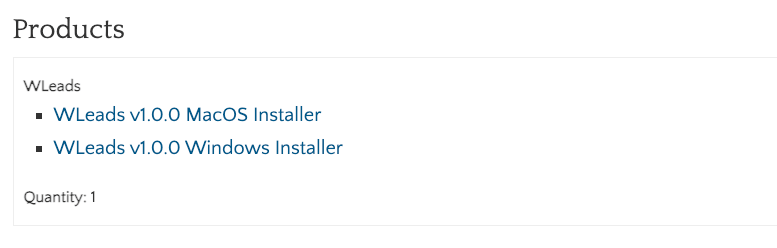
2. Once the app is installed, open the WLeads app on your Windows PC or Mac.
3. Your computer’s default browser will open the WLeads app page as shown below:
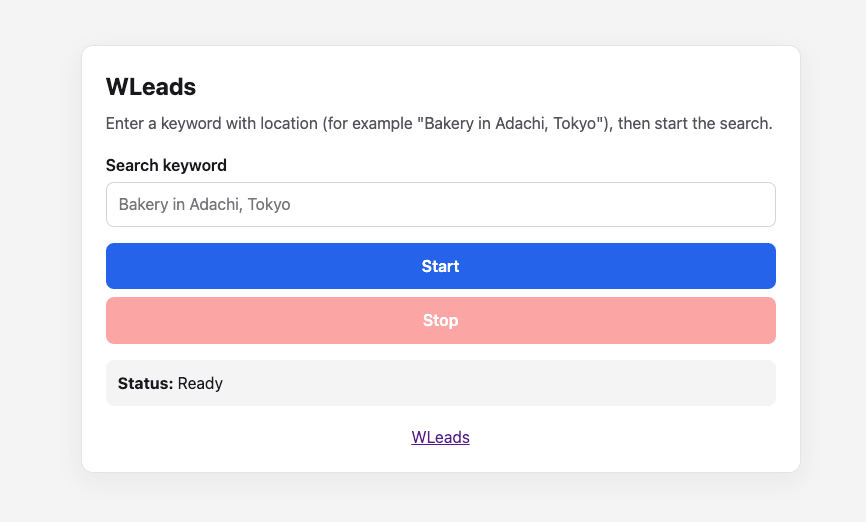
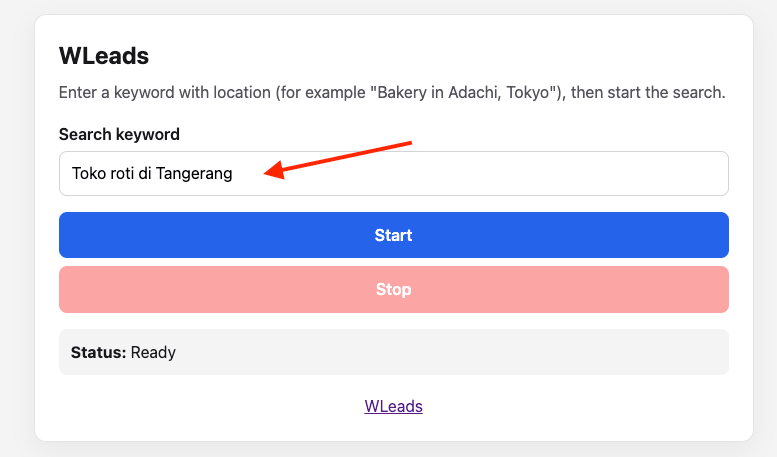
4. Enter the keywords + location you want to target in the format “keyword in location,” for example, “Bakeries in Karang Tengah, Tangerang” or “HVAC Contractors in Surabaya.”
5. Click the “Start” button, then let the app run for a few minutes to retrieve data.
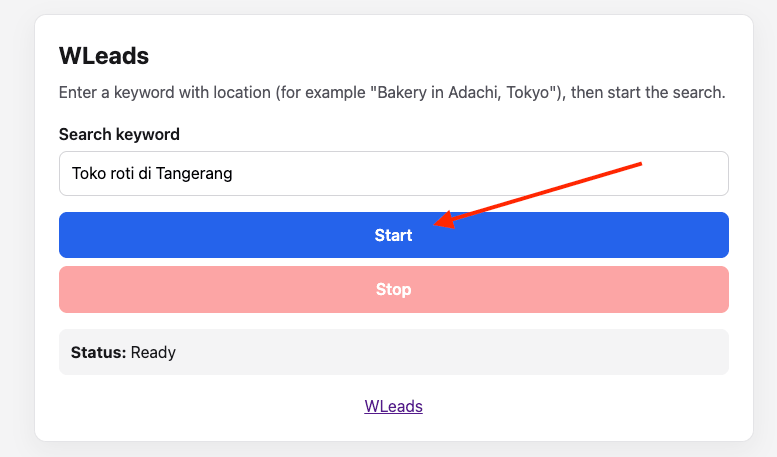
6. The app’s status will be automatically updated in real time in the Status section.
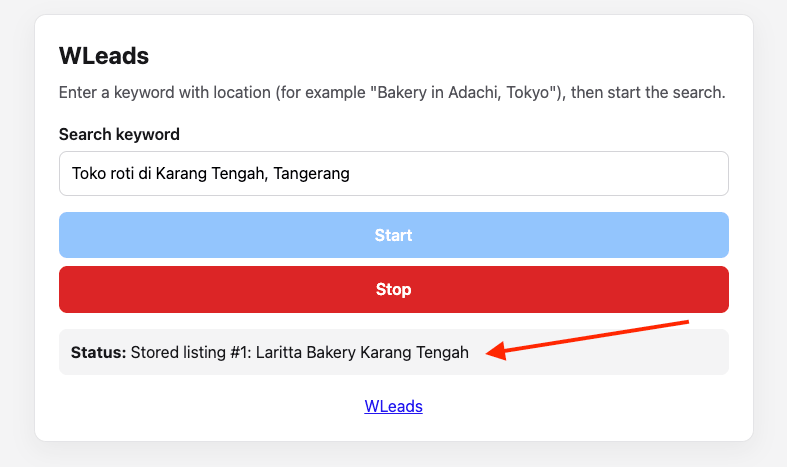
7. The WLeads app page must remain open so it can continue collecting data in the background. You can step away and work on other tasks while waiting for WLeads to finish.
8. Once the WLeads app has finished running, the status will update to “Finished,” and your prospect data file will automatically be saved to the “Downloads” folder on your computer, whether you’re using Windows or macOS. You can also click the “Stop” button during the process to halt the app. Any data collected before the app was stopped will still be saved in your prospect data file. The prospect file will be named in the format leads-yyyymmdd-number.csv.
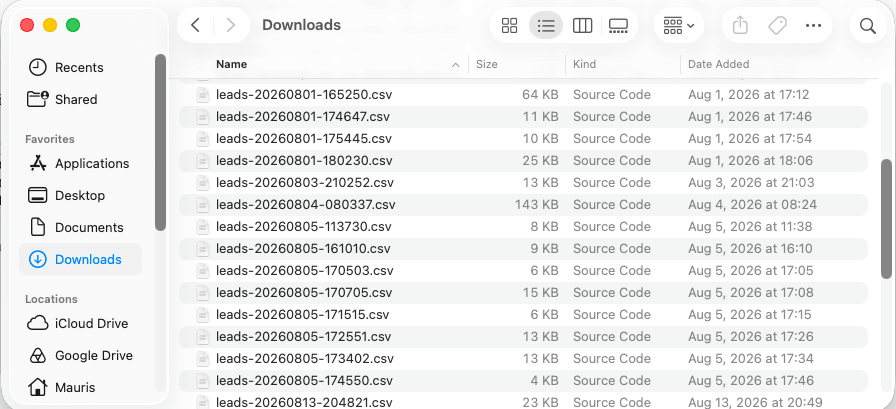
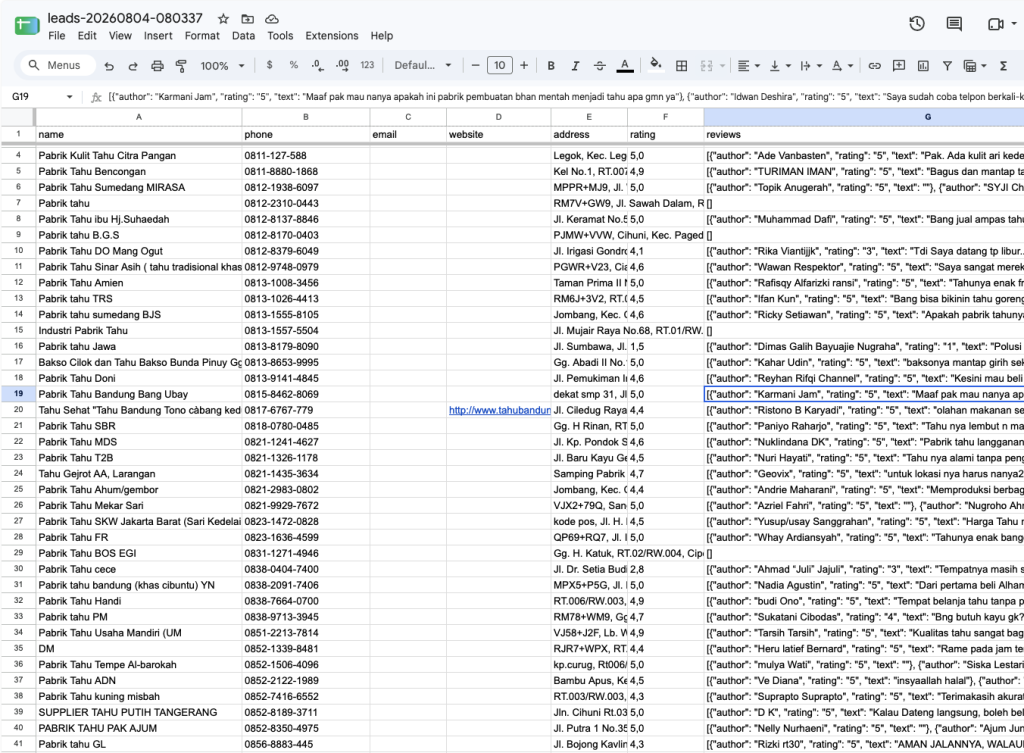
This file can be opened in Microsoft Excel, Google Sheets, LibreOffice Calc, and other applications that support the CSV format. Here is an example of the prospect data file obtained:

Leave your comments below!